
Asta Powerproject BIM
Comprehensive 4D Planning
Key Features of Asta Powerproject BIM
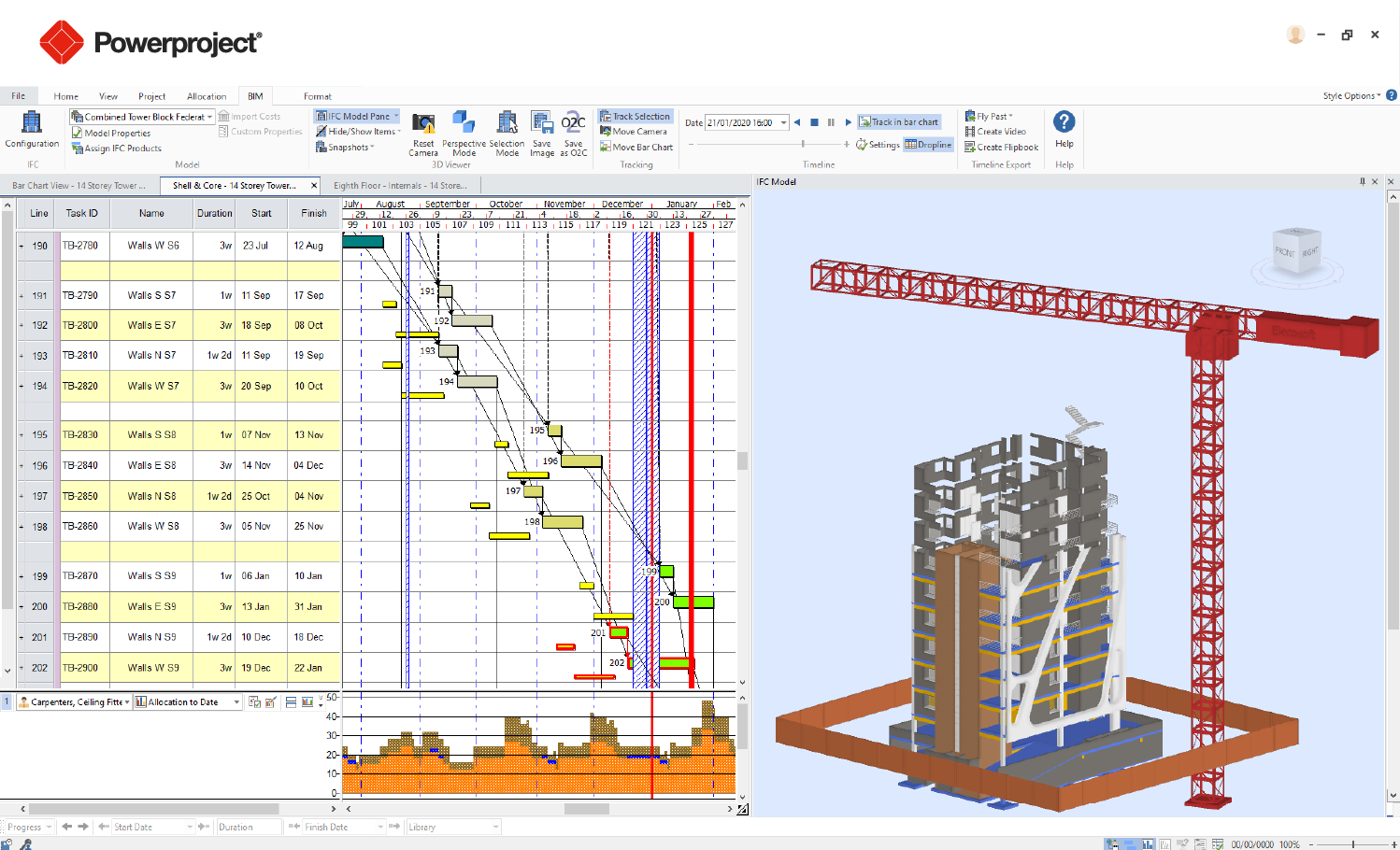
IFC Import
Supports industry-standard IFC files (from Revit, ArchiCAD, Tekla, etc.)
Linking Model to Tasks
Drag and drop model elements to Gantt tasks to create 4D links
Color-Coded Task Visualization
See which components are associated with each task using colors in the 3D view
Split and Merge Model Elements
Divide or combine elements to better match the task breakdown
Model Comparison / Revisions
Handle updates to models (e.g., revised IFCs) without losing links

Model Navigation
View, rotate, zoom, and explore the 3D model inside Asta
4D Construction Simulation
Animate the build sequence over time to visually simulate project progress
Model-Based Progress Tracking
Update model progress visually alongside actual schedule progress
Clash / Logic Checks
Identify sequencing errors visually (e.g., walls before foundations)
Offline or Cloud
Can work with models stored locally or shared via cloud platforms
Benefits of Asta Powerproject BIM
Improves Communication
4D visuals help explain plans clearly to stakeholders, even non-technical ones
Links Time and Space
Seeing when and where elements are built reduces confusion on-site
Integrates with Estimating & Costs
When paired with tools like Bidcon BIM, helps with 5D planning (costs + schedule + model)
Enhances Collaboration
Shared 3D views help align architects, planners, and contractors around the same plan
Reduces Build Errors
Visualizing sequences reveals conflicts or errors before construction starts
Supports Lean Construction
Allows better planning of workflows, minimizing waste and idle time
Better Progress Tracking
Visual progress updates help spot deviations from plan early
Minimizes Rework and Claims
Clear build logic and evidence of planned vs actual can reduce legal disputes
Asta Powerproject BIM Workflow
Step 1: Import Your BIM Model (IFC Format)
- Start by importing a 3D model in IFC format (open BIM standard).
- Models can come from Revit, ArchiCAD, Tekla, or other BIM tools that export IFC.
Step 2: Create your construction schedule using Asta Powerproject as usual:
- Activities/tasks
- Durations
- Logic (dependencies)
- Resources/costs (optional)
You can also import a schedule from MS Project, Primavera, or Excel if needed.
Step 3: Link Model Elements to Tasks
- Open the BIM viewer pane (inside Asta Powerproject BIM).
- Select a task in the Gantt chart.
- Then drag and drop one or more model components (walls, slabs, doors, etc.) onto that task.
- This creates a 4D link between the task and the model element(s).
Step 4: Visualize Task Sequences in 3D
Use the built-in 3D viewer to:
- Highlight linked components
- View color-coded stages (based on planned dates, actual progress, or task status)
- Navigate through time using the “Play” or “Time Slider” to see how construction will progress
This is your 4D construction simulation — a timeline-linked model animation.
Step 5: Update Progress (Visually & Numerically)
- Update task progress manually or through site updates (e.g., Site Progress Mobile).
- The BIM view updates to reflect the current build state:
- Completed tasks = components turn green (or configured color)
- In-progress = orange, behind schedule = red, etc.
This visual feedback helps identify delays or sequencing issues faster than spreadsheets.
Step 6: Handle Revisions (Model or Schedule)
- If the IFC model gets updated (e.g., design changes):
- You can reimport the new version
- Asta will attempt to preserve existing links
- You can also use the “compare” feature to spot changes between model versions
This supports model-based change management.
Step 7: Generate Reports or Export 4D Video
- Take snapshots of model stages for presentations
- Export a 4D animation video (MP4 or AVI) to share with clients or teamsInclude task names, dates, colors, and camera angles
This is especially helpful for:
- Tender presentations
- Client progress reviews
- Site team briefings
Request a Free Consultation
"*" indicates required fields